


Introduction
Turning a JPG or PNG image into a vector file opens up a world of possibilities for graphic design, embroidery, or printing, and you can do it entirely online without installing software. Vector files, like SVG or EPS, are scalable without losing quality, making them ideal for logos, illustrations, or embroidery digitizing. Whether you’re a small business owner creating branded materials, a crafter preparing designs for stitching, or a designer working on print projects, online tools make this process fast and accessible. In this guide, we’ll walk you through how to convert image to vector file online, offering simple methods and tips for high-quality results.
Why Convert JPG or PNG to Vector?
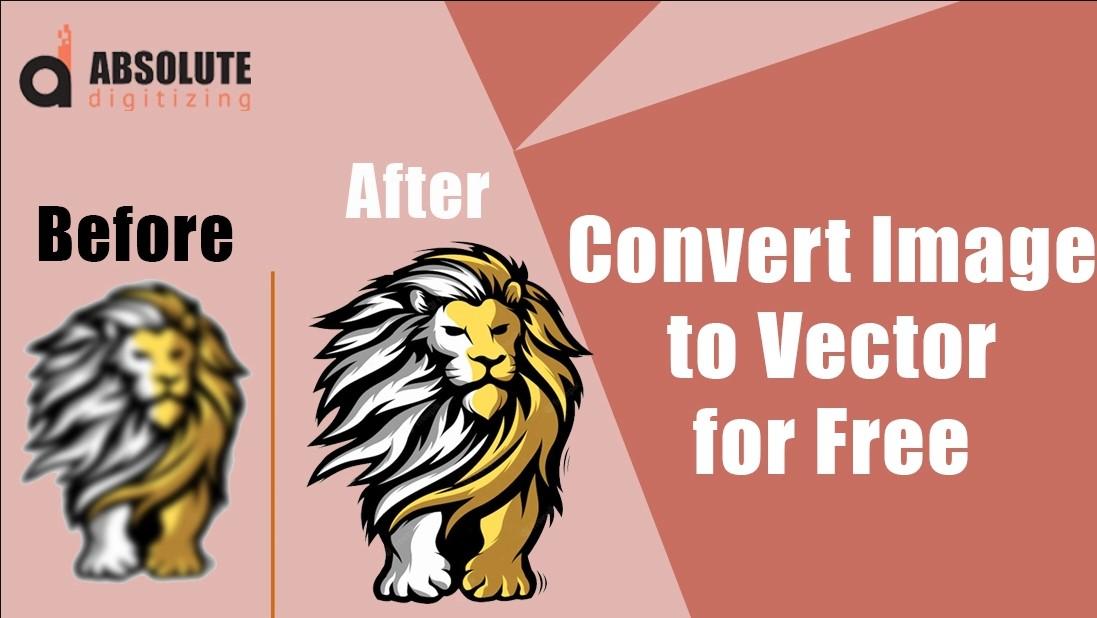
JPG and PNG images are raster files made of pixels, which can become blurry when scaled up. Vector files, on the other hand, use mathematical paths, allowing them to scale infinitely without losing clarity. This makes vectors perfect for logos on business cards or billboards, embroidery designs for apparel, or artwork for high-quality prints. Converting images to vectors online saves time, eliminates the need for expensive software, and ensures your designs remain sharp and versatile for various applications.
Understanding the Vector Conversion Process
Converting a JPG or PNG to a vector involves tracing the raster image’s shapes and colors to create a vector-based design of paths and curves. Online tools use automated algorithms to simplify this process, analyzing edges and colors to generate scalable vectors. The goal is to produce a clean, editable file that retains the image’s core elements, suitable for graphic design, embroidery digitizing, or printing. Let’s explore the best online methods to achieve this.
Method 1: Use VectorMagic for Quick Conversion
VectorMagic is a popular online tool that offers fast, high-quality vector conversions with a user-friendly interface. It provides limited free conversions, with paid options for frequent use.
Steps to Convert with VectorMagic
- Visit VectorMagic: Go to the VectorMagic website in your browser.
- Upload Your Image: Click the “Upload Image” button and select your JPG or PNG file.
- Choose Conversion Settings: Follow the guided wizard, selecting options like “High Quality Photo” for detailed images or “Logo” for simpler designs. Adjust color and detail settings as needed.
- Refine the Result: Use VectorMagic’s editing tools to simplify paths or adjust colors if necessary.
- Download the Vector: Save the file as SVG or EPS. Free users may have limited downloads, so check restrictions.
- Test the File: Open the vector in a graphics program like Inkscape to ensure it scales without losing quality.
VectorMagic’s automated tracing delivers reliable results, making it ideal for quick conversions.
Method 2: Use Photopea for Free Browser-Based Conversion
Photopea is a free, browser-based tool with Photoshop-like features, including vector conversion capabilities. It’s perfect for users seeking a no-cost solution.
Steps to Convert with Photopea
- Access Photopea: Visit the Photopea website; no account or download is required.
- Upload Your Image: Click “File” > “Open” and upload your JPG or PNG.
- Vectorize the Image: Go to “Image” > “Vectorize Bitmap” and adjust settings like “Colors” or “Edge Detection” to trace the image’s shapes.
- Edit the Vector: Use Photopea’s tools to refine paths, remove unnecessary nodes, or adjust colors for a cleaner design.
- Export as Vector: Go to “File” > “Export As” and choose SVG or EPS.
- Test the File: Open the vector in a compatible program to verify scalability and quality.
Photopea’s versatility makes it a powerful free option for online vector conversion.
Method 3: Use Convertio for Simple File Conversion
Convertio is an online file converter that supports JPG or PNG to vector formats like SVG, with a straightforward interface and free limited conversions.
Steps to Convert with Convertio
- Visit Convertio: Go to the Convertio website in your browser.
- Upload Your Image: Click “Choose Files” and upload your JPG or PNG.
- Select Output Format: Choose SVG as the output format (EPS may require additional steps or software).
- Convert the File: Click “Convert” to process the image. Convertio’s tracing is basic, so results may need refinement.
- Download the Vector: Save the SVG file to your device.
- Refine if Needed: Open the file in a free tool like Inkscape to clean up paths or adjust details.
Convertio is great for simple conversions but may require post-processing for complex designs.
Tips for High-Quality Vector Conversion
To ensure your vector files are professional, follow these tips:
- Use High-Resolution Images: Start with JPGs or PNGs of at least 300 DPI to capture details and avoid jagged vectors.
- Simplify Designs: Reduce colors and remove intricate details for cleaner vectors, especially for embroidery or simple logos.
- Test Scalability: Open the vector file in a graphics program and zoom in to ensure it remains sharp.
- Save in Multiple Formats: Export as SVG and EPS to ensure compatibility with design or embroidery software.
- Learn from Tutorials: Watch YouTube videos or join forums like Reddit’s r/GraphicDesign for tips on refining vectors.
These practices help you create clean, versatile vectors online.
Common Challenges and Solutions
Converting images to vectors online can present challenges, but they’re manageable:
- Poor Image Quality: Low-resolution images lead to messy vectors. Use high-resolution JPGs or PNGs and preprocess them in tools like Canva.
- Complex Designs: Images with many colors or fine details can produce cluttered vectors. Simplify the image before conversion.
- Limited Free Access: Some tools limit free conversions. Use Photopea for unlimited free use or budget for paid tools like VectorMagic.
- File Compatibility: Ensure the output format (SVG, EPS) works with your software or embroidery machine. Convert to other formats if needed.
Testing vectors in your target application helps catch issues early.
Tools to Enhance Your Workflow
Streamline your online conversion process with these tools:
- Image Editing Software: Use Canva or GIMP (online or desktop) to simplify and enhance images before uploading.
- Cloud Storage: Store vector files in Google Drive or Dropbox for easy access and sharing.
- Free Vector Editors: Use Inkscape or Gravit Designer to refine vectors after online conversion.
- Online Communities: Join forums or watch tutorials for tips on optimizing online tools like Photopea.
These tools make conversion smoother and improve file quality.
When to Consider Professional Services
If your image is complex or you need a polished vector for professional use, consider outsourcing to a graphic designer or digitizing service. These services create high-quality vectors tailored to your needs, often faster than manual conversion. Look for providers with strong portfolios, confirm they support SVG or EPS output, and read reviews for reliability. Outsourcing is ideal for intricate designs or time-sensitive projects, such as embroidery digitizing or large-scale printing.
Conclusion
Converting JPG or PNG image to vector file online is a fast, accessible way to create scalable designs for graphic design, embroidery, or printing. Tools like VectorMagic, Photopea, and Convertio offer simple solutions, with free or low-cost options for any skill level. Start with high-resolution images, simplify designs, and test files to ensure professional results. Whether you’re crafting logos, embroidery patterns, or print artwork, these online methods empower you to create high-quality vectors without expensive software. Dive into online vector conversion today and transform your images into versatile, professional designs with ease.

 English
 Arabic
 French
 Spanish
 Portuguese
 Turkish
 Dutch
Dutch
 Italiano
 Russian
 Romaian
 Portuguese (Brazil)
 Tiếng Việt